Welcome to the Dalux release notes for version 2025.7.
This update will be rolled out between November 22nd and November 29th, 2025, depending on your region.
You can find the key highlights, changelog, and detailed release notes for Dalux 2025.7 right here.
If you want to be notified about upcoming Dalux releases, you can sign up to Get early notifications for Dalux software releases.
| Project Connect | Compare 360 images with 3D in InfraField | Duplicate comment and markups across files |
| Project Connect is a new feature that lets you easily, automatically, and continuously transfer files from other projects you're involved in, but don't own, to your own project. Allowing you to maintain control over your own project, manage your own tasks, keep data ownership, and ensure continuity. |
Easily compare your 360 images directly with the 3D model in InfraField Pro to track your progress or view the as-built in a 3D context. You can now view alignments in 3D as well and zone properties can be edited for multiple items at once in the list view. |
Comments can be duplicated across different files and pages, including both the comment and its markups. This makes it easier to create the same comments for similar issues, while still letting you track and follow up on each one individually.
|
To find the release notes you are looking for, open the drop-down menus and click on the links.
Field
- New onboarding process for Field projects
- Create empty test or inspection plan workflows
- Attach test plans or inspection plans to empty workflow
- Copy test plan and inspection plan workflows
- New activity dashboard for tasks and checklists in company profile
- Importing checklists from company profile
- Safety inspection overview for users in safety workflows
- Improvements to Excel exports
- Audit information as an option when printing
- Links and dates added to task reminder templates
- Export from Field to Owners Portal
- Links to PDFs in Excel exports from Owners Portal
- Export overview drawings from Owners Portal
- See and download attachments from Owners Portal
- Grouping in Quantities list views
- SiteWalk comparison view stays the same
- Removed support for non-admins to add users in workflows
Box
- Project Connect
- Duplicate a comment to another file or page
- Duplicate previous stamp markups
- Hyperlinks from documents
- Integrated search in documents
- New model compare view in Box
- New overview menu for sharing or publishing multiple files
- Publishing of the same file version with the same status
- Improvements to print reports for comments.
- Print reports from submittals
- Print remarks from submittals
InfraField
- Compare 360 images to 3D
- Alignments and cross sections in 3D
- List view for zones
- Use symbols to stylize your GIS data
- Toggle default GIS and alignment data on the map
- Navigate through adjacent 360 images on your Pathway
- Measurements snap to alignments
- See GIS data added to the map from Box
- See if files have been added to the map from Box
- Find your position on the mini map more easily
Plugins and integrations
Deprecation notices
 Field
Field
New onboarding process for Field projects
When you create a new project, you can now choose your contractors and processes right from the start. User groups, work packages, and workflows are created automatically based on your selection. Users just need to be invited and added to the user groups to get started.
Create empty test or inspection plan workflows
When creating new workflows for test plans or inspection plans, you no longer need to select a plan. Empty workflows can be created on projects or when creating work package templates in the company profile. This allows you to create placeholder workflows that can be edited, and test plans and inspection plans can be added later.
Attach test or inspection plans to workflows in the project standards
When creating a project standard, you can now link multiple test plans or inspection plans to workflows. The work package needs to be set as included in the project by default.
The test plan or inspection plan are added to the project standard from the Field library, and can then be connected to empty workflows. When a project is created using the project standard, the test plans or inspection plans are automatically added and ready to be used.
Attach test plans or inspection plans to empty workflow
If you have a placeholder workflow set up for test plans or inspection plans, you can connect your plan to that workflow when you create it. You can add a plan to the workflow either through the template settings or directly within the workflow itself.
Copy test plan and inspection plan workflows
You can now copy test plan and inspection plan workflows to other work packages. You also have the option to copy user groups and related tasks (for inspection plans). When copying the entire work package, test plans and inspection plan workflows will be copied as empty workflows.
Checklist association in the project standards
You can now associate checklists within the project standards. This allows you to link a checklist to one or more workflows, making them automatically available and ready in projects created with that standard.
Check for duplicated checklists when importing to company profile
When you import a checklist to your company profile's library, Dalux will check for any duplicate titles or prefixes. You can then choose whether to overwrite the existing checklist or create a copy.
New activity dashboard for tasks and checklists in company profile
A new activity dashboard has been added to the company profile, so you can easily see the activity of tasks and checklists across all your company projects.
Safety inspection overview for users in safety workflows
Users or user groups with the creator role in safety workflows can now view and create safety inspections directly from the safety menu. This means you no longer need to be part of the Safety manager group to access safety inspections through the safety menu.
Improvements to Excel exports
When you export tasks or checklists from Field, the total of the rows (if enabled) and the status color will now be included in the Excel export as well.
Audit information as an option when printing
You can now choose to include audit information when printing checklists for each case. Just select the option in the print menu to add it to your report.
Links and creation date added to task reminder templates
The task table for task reminder templates now includes the creation date for each task, along with a link to the task. This makes it easier to access the task directly in Dalux and gives a better overview of the task's timeline.
Export from Field to Owners Portal
You can now easily export tasks, checklists, inspection plans, and test plans to the Owners Portal directly from the Field list views. This simplifies exporting specific registrations without needing to set up an export filter first. When exporting, you also have the option to include attachments and photos.
Links to PDFs in Excel exports from Owners Portal
When you export registrations as an Excel table or individual reports, the Excel sheet will now include links to the exported PDFs, as long as the Excel file and PDFs stay in the same folder or zip file.
Export overview drawings from Owners Portal
You can now export overview drawings from Owners Portal. Overview drawings show the exported registrations on each floor of your buildings.
See and download attachments from Owners Portal
Attachments added to registrations in the Owners Portal can be viewed or downloaded directly from the PDF.
Grouping in Quantities list views
You can group your results in the Quantities list view to make it easier to see your filtered data. This grouping will also be applied when you export the results to a spreadsheet.
SiteWalk comparison view stays the same
When you compare SiteWalk images from the thumbnails, the orientation and zoom level will stay the same for both images instead of resetting.
Removed support for non-admins to add users in workflows
Non-admin users are no longer able to add or remove users and roles from workflows they are a part of.
 Box
Box
Project Connect
Project Connect is a new feature that lets you easily, automatically, and continuously transfer files from other projects you're involved in, but don't own, to your own project. Allowing you to maintain control over your own project, manage your own tasks, keep data ownership, and ensure continuity.
Project Connect regularly checks for new files or updated versions and moves them to your project.
Setting up Project Connect is available in Box Pro. You can read more about Project Connect in this article: Project Connect
Duplicate a comment to another file or page
When you create new comments, you now have the option to duplicate them to another file or page. This can be helpful for issues that come up on different floors or elements. You can duplicate comments either at the time you create the original comment or later, whenever needed. This makes it easier to track and follow up on each issue separately.
You cannot duplicate comments if the files are opened from Recent files or from a file flow.
Duplicate previous stamp markups
You can duplicate stamp markups from the previously published drawing and reuse the markups you want, or delete the ones you do not need anymore. You can also choose to view markups from all comments on the file and convert them into a stamp markups. This helps reduce the need to recreate stamp elements manually, saving you time and making the process more efficient.
Hyperlinks from documents
Hyperlinks can now be detected in documents, allowing for links between documents as well as between documents and drawings. This helps connect your Box files even more and makes it easier to access drawings or documents directly from places like drawing lists or specifications.
Integrated search in documents
We have added a built-in search bar to the new document reader to make it easier for you to find what you're looking for. We've also improved the text marking feature within the document.
New model compare view in Box
You can now compare model files from different versions in Box Pro with the new compare view, similar to the one in Design. This makes it easier to see changes in the models directly within Box.
Additionally, changes in property values are shown as differences in the summation row, both in Box and Design. Just hover over the value to see the details of the change.
New overview menu for sharing or publishing multiple files
When you start a file flow or manually share or publish files from a Box folder, a new overview menu will appear to show you what will happen to each file.
Publishing of the same file version with the same status
You can now publish a file version again with the same status as a new revision when you add markups. This makes it easier to publish markups without having to change the status or upload a new version.
Improvements to print reports for comments.
When you print comments, the new default setting will group all the markups on a specific page or drawing together, even if they come from different comments. If you’d rather print each markups on its own page or drawing, you can select that option in the print settings.
The print feature now also lets you automatically skip pages without markups, helping to keep your print report clearer. If you want to include all pages like before, you can easily choose that option.
Print reports from submittals
A report can now be generated and printed for each submittal. The report includes an overview and history of the submittal, and you have the option to include remarks and review comments.
Print remarks from submittals
You can now print a remark directly from the menu when viewing it in a submittal.
 InfraField
Compare 360 images to 3D
In InfraField Pro, you can now compare 360 images on the map with the 3D model. This can be used to monitor progress or to compare completed work with the model to identify hidden constructions. Both the images and the model are placed using GPS coordinates, so you can easily compare 3D and 360 images that are close to each other.
Alignments and cross sections in 3D
Alignments and cross sections can now be accessed directly from the 3D view of your area, making it simpler to work with station lines and jump to the details you need.
List view for zones
When managing zones, you can now view them in a list format. This helps you add and edit zone metadata more easily and quickly. The feature is available for both regular zones and station lines in InfraField projects.
Use symbols to stylize your GIS data
Personalize your GIS data with a set of symbols tailored to match the technical details of your project site. Using various symbols and color codes makes it easier to distinguish between different GIS data.
Toggle default GIS and alignment data on the map
You can choose which alignments or GIS layers are shown by default for all users. This can help your onsite teams, when there is data you want to have visible on the map all the time. You can select up to five different alignments or GIS layers. This feature is available on desktop now, with mobile support coming later this year.
Navigate through adjacent 360 images on your Pathway
When you have multiple 360 images close together, you can move between them by clicking on the green dot. This makes it easy to navigate through a series of pictures or jump to a nearby image, as the dot shows the location of the image compared to your current view.
Measurements snap to alignments
Measurements now automatically snap to alignments, making it easier and quicker to use them for your measurements.
See GIS data added to the map from Box
GIS files can be previewed in Box after they have been added to the map (and processed). This allows you to open and see the specific GIS data directly from a Box folder, without having to find it on the map view.
See if files have been added to the map from Box
A new 'On map' column has been added to Box in InfraField. You can use this column to quickly see and sort files that have or have not been added to the map.
Find your position on the mini map more easily
When you move the mini map, the position marker stays at the edge and points to your location, making it easier to find your way back to the image position.
 Design
Property rules and property checks
Property rules and property checks are now managed within the updated model validation matrix. You can create and edit rules and checks across different disciplines and view the results directly in the matrix.
Run model validation checks in the browser
You can now set up automated model validation checks for a chosen building and see the results right in the browser version of Dalux. Just select a building for automation in the project settings under Design.
After the building is processed, you'll be able to access the model validation checks in the browser for that building.
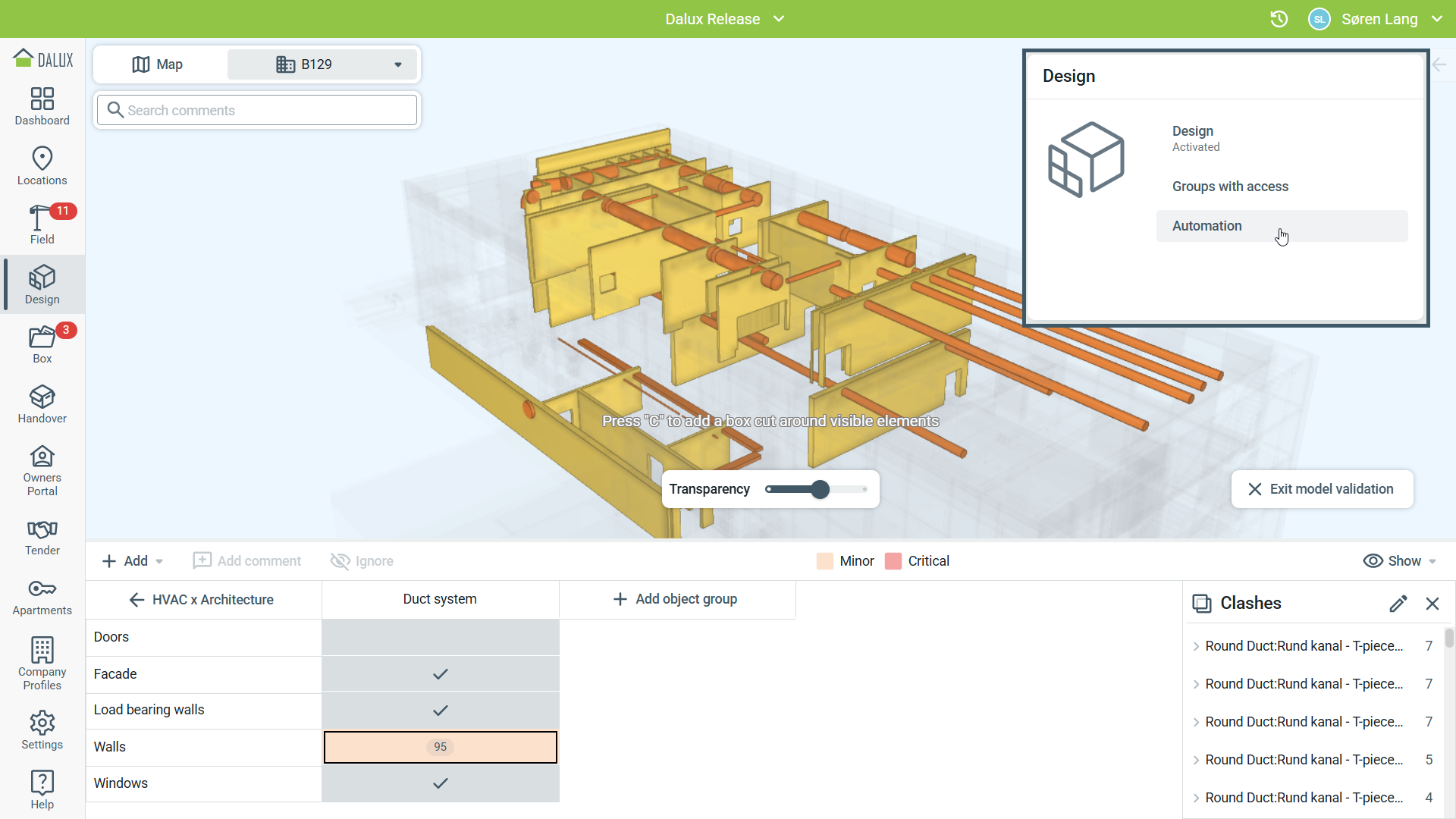 Transparency slider for hidden objects
When running model validation checks, a transparency bar allows you to adjust the visibility of hidden objects.
Processing indicator when updating models
When you update a model that's part of a building, you'll see if the building is still being processed. Once the processing is complete, you can reload the building by clicking the button. Keep in mind that changes made to the model won’t appear in Design until the processing is finished.
See which saved filters are using colors
If you have saved a filter in Design or
Locations with the colorize feature enabled, you'll notice a
-icon showing that the filter includes colors.
 Tender
Toggle questions after deadline permission
When setting up a new tender, you have the option to allow or prevent questions after the questions deadline. By default, questions after the deadline are allowed when you enable the questions and answers feature on a tender.
If you prefer that bidders cannot submit questions after the deadline, you can simply disable this by unchecking the box.
Improved overview of subcontractors when forwarding a Q/A
It is now simpler to get an overview of multiple subcontractors when forwarding a question and answer to them.
 Handover
Extended permissions to the view asset history in Handover
Responders can now access the history view for assets as well. This means that when updating asset information, they can also see the history and previous changes made to the asset. Previously, this feature was only available to admins and reviewers.
 Plugins and integrations
Revit plugin 6.3.0
A new version of the Revit plugin is now available. It includes stability and performance improvements, and you can now toggle views in the menu to more easily find the view you need.
You will no longer be able to switch to the old version of the Revit plugin in this version.
You can learn more here: How to upload 3D models and drawings using the Revit plugin
Dalux desktop application 3.6
A new version of the Dalux desktop application is now available, featuring support for all the latest updates. If your app has not updated automatically, please consider downloading the latest version.
Technical information
Users in Windows 10 and non English versions of Windows 11 might experience issues installing, or updating to, the newest version of the desktop app. If you are having issues please refer to the troubleshooting tips posted here: Dalux Windows App
Deprecation notices
Ricoh Theta X camera will no longer be supported for SiteWalk after 2026.1
We have extended the support for Ricoh Theta X until June 1, 2026.
While we still encourage customers to choose higher quality cameras, we want to provide more time to complete current projects and plan the transition away from using the Theta X.
Why are we discontinuing support?
- It has the lowest image quality among all supported cameras
- It has the shortest battery life
Please note that the Theta X will continue to support standard 360 photo capture using the Dalux app.
As we no longer recommend this camera, we suggest starting to switch to one of our recommended cameras, which you can find here: How to prepare for SiteWalk